
How to Temporarily Disable Your Instagram Account
If you find yourself needing a break from social media, disabling your Instagram account temporarily might be the perfect solution. This guide will take you through the steps to effectively disable your account while preserving your photos, followers, and all your information for when you decide to return. Let’s dive into the process!
Why Disable Your Instagram Account?
Many users consider disabling their Instagram accounts for various reasons, including:
- Taking a break from social media
- Reducing distractions
- Focusing on mental health
- Avoiding unwanted interactions
- Reevaluating personal branding or online presence
Disabling your account is an effective way to achieve these goals without the permanent consequences of deletion.
Steps to Temporarily Disable Your Instagram Account
Follow these steps carefully to disable your Instagram account:
1. Log Into Instagram
Open the Instagram app or website and log in to your account using your username and password.
Once you’re logged in, go to your profile by clicking on your profile picture in the bottom right corner (on the app) or the top right corner (on the website).
3. Go to Settings
On your profile page, you will see a gear icon (⚙️) or three horizontal lines (☰) for the menu. Click on it and select ‘Settings’ from the dropdown menu.
4. Access the ‘Edit Profile’ Section
In the settings menu, find and select ‘Edit Profile’. This section allows you to manage your account’s settings.
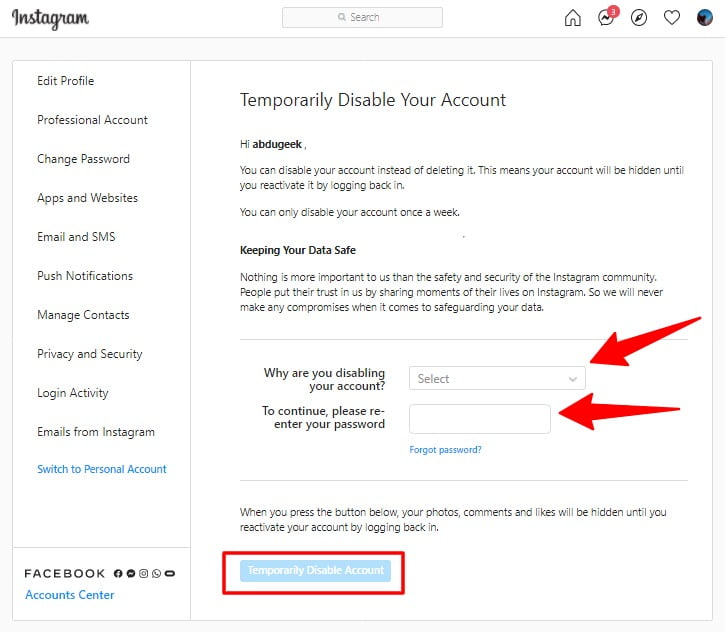
5. Find the Option to Temporarily Disable your Account
Scroll down to the bottom of the ‘Edit Profile’ page. Look for the link that says ‘Temporarily disable my account’. Click on it.
6. Select a Reason for Disabling
Instagram will ask you to select a reason for disabling your account from a dropdown menu. Choose the reason that best fits your situation.
7. Re-enter Your Password
You will need to re-enter your password to confirm the action. This is a security measure to ensure that only you can disable your account.
8. Click on ‘Temporarily Disable Account’
After selecting your reason and entering your password, click the button that says ‘Temporarily Disable Account’. Your account will be disabled immediately.
What Happens When You Disable Your Account?
When you disable your Instagram account:
- Your profile, photos, comments, and likes will be hidden from other users.
- Your account will not be accessible, but all your information will be saved.
- People will not be able to search for you or see your content.
Disabling your account is temporary, and you can easily reactivate it by logging back in at any time. All your information will remain intact.
How to Reactivate Your Instagram Account
If you’ve decided to return to Instagram, reactivating your account is just as simple as disabling it:
1. Log Back Into Your Account
Open the Instagram app or website and log back in using your credentials.
2. Your Account Will Be Reactivated
Once you log in, your account will be reactivated automatically. Your profile, photos, and followers will be exactly as you left them.
Common Mistakes to Avoid
When disabling your Instagram account, keep in mind the following common mistakes:
- Attempting to disable your account via the app’s settings instead of the web browser (this feature is not available in the app).
- Forgetting your password, as you will need it to disable your account.
- Ignoring the reason selection – ensure you choose one that is appropriate to your situation.
Final Thoughts
Disabling your Instagram account can be a healthy step when you need a break from social media. This temporary solution helps manage your online presence without sacrificing your content. Remember that you can always return, and all your memories will be waiting for you. Take the necessary steps to protect your mental health and focus on what’s important in your life. If you need more detailed guidance or have specific situations in mind, feel free to explore more resources.
For more information, you can check out this How to Disable an Instagram Business Account https://crazyfb.shop/en/page/kak-otklyuchit-biznes-akkaunt-instagram.